

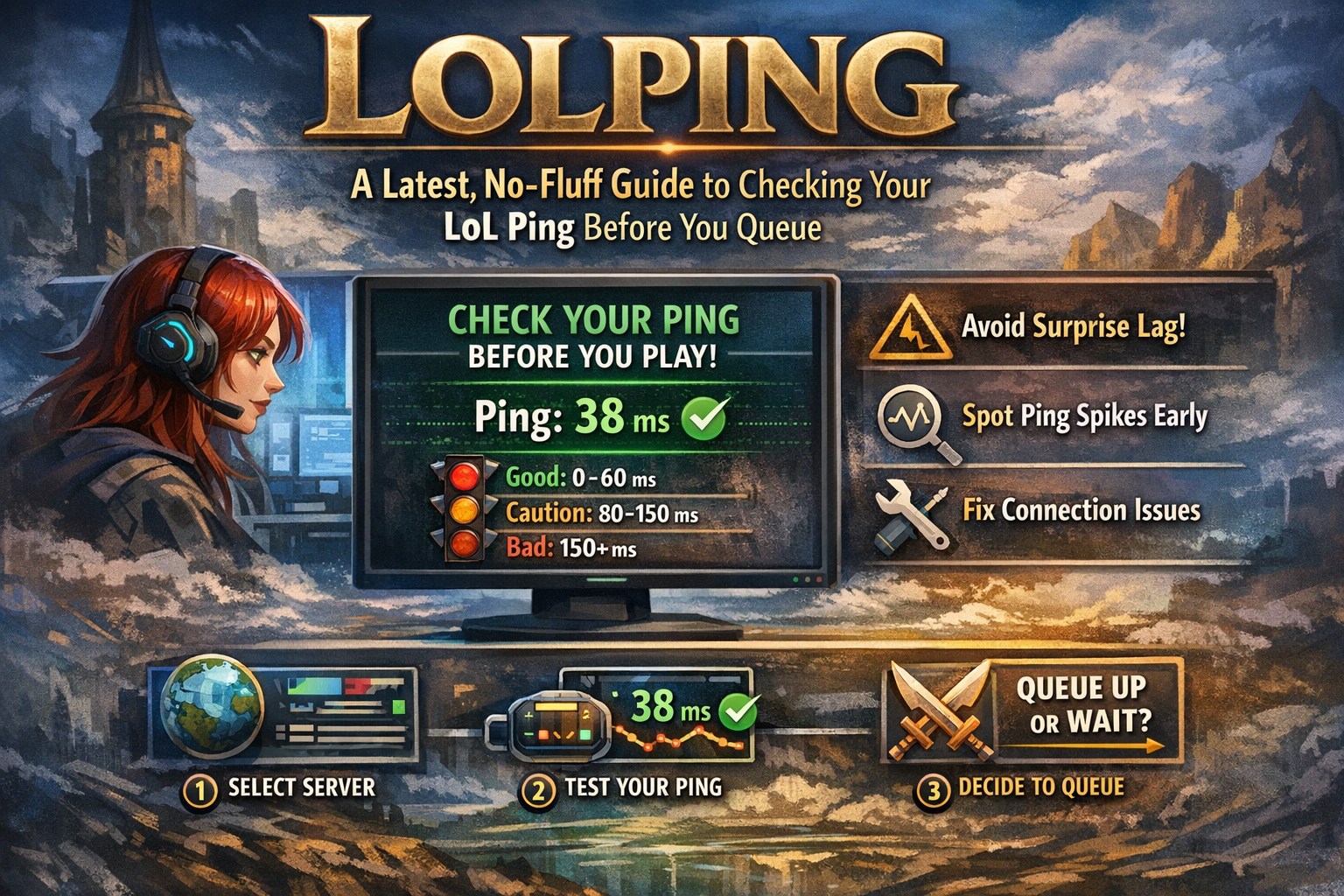
Lolping: What It Means (and Why Players Search It)
Lolping usually points to one simple need: “Show me my ping to League of Legends servers right now—before I jump into a match.”
League can show ping in-game, but when your connection is unstable, that information often arrives too late—you’ve already locked a champ, loaded in, and now every skillshot feels delayed. Lolping-style tools and “LoL ping checkers” exist to solve that exact pain: a quick, clear ping reading to your region/server so you can decide whether to play ranked, play normals, or fix your network first.
In 2026, players still use Lolping for three main reasons:
-
Avoid losing LP to surprise lag
-
Detect ping spikes early
-
Troubleshoot connection problems faster
Lolping Basics: Ping, Latency, and What You’re Actually Measuring
When Lolping shows a number like 38 ms or 120 ms, it’s measuring latency—how long it takes data to travel from your device to a server and back.
-
Lower ping = faster response, smoother movement, cleaner combos
-
Higher ping = delayed inputs, rubberbanding, “I pressed it but it didn’t cast” moments
A key detail many people miss: average ping is not the whole story.
Two connections can both show 60 ms, but one is stable and the other spikes to 200 ms every 20 seconds. The second one will feel awful.
So when using Lolping, you’re looking for:
-
A good number
-
A stable number
How Lolping Works (Simple Explanation)
Most Lolping tools do the same job in a straightforward way:
-
You pick a League server/region (like EUW, NA, etc.)
-
The app sends small “ping” requests to the target endpoint
-
It times how long replies take and displays the result in milliseconds
Many LoL ping checkers use the ICMP ping method (the same idea behind the ping command), and some projects even describe using Apple’s SimplePing approach for macOS-based menu apps. (This is why menu-bar Lolping tools can feel lightweight and fast.)
Lolping Tools: What Counts as “Lolping” Today?
“Lolping” isn’t always one single official product. People use the keyword to describe a category of tools:
1) Lolping Menu Bar Apps (Mac)
Some versions are built as a menu bar app on macOS—so your ping is always visible at the top of the screen. That’s perfect for quick checks while your computer is doing other stuff.
2) LoL Ping Checker Apps (Windows / Cross-platform)
There are different “LoL Ping Checker” projects that ping servers multiple times to show average, min, and max values.
3) Web-Based LoL Ping Tests
Some sites let you run a ping test for LoL regions from your browser. These are handy for quick checks, especially if you don’t want to install anything.
Lolping Numbers: What Ping Is Good for League?
Here’s a practical way to judge your Lolping result.
| Ping (ms) | Feels Like | Should You Queue? |
|---|---|---|
| 0–30 | Super crisp | Yes (ideal) |
| 30–60 | Smooth | Yes (great) |
| 60–90 | Slight delay | Usually yes |
| 90–130 | Noticeable | Depends (avoid ranked if spiky) |
| 130–200 | Frustrating | Usually no |
| 200+ | Unplayable | Don’t queue |
Big rule: if the ping is jumping around, treat it like a warning even if the average looks okay.
Lolping vs In-Game Ping: Why Check Before the Match?
A lot of players think: “I’ll just check ping in-game.”
But Lolping has a different value: timing.
In-game ping helps you:
-
confirm lag once you’re already inside
-
see real-time latency during fights
Lolping helps you:
-
check connection before champ select
-
spot spikes while you’re still deciding what to play
-
test fixes quickly (router restart, Ethernet, turning off downloads)
If you care about ranked games, this difference matters a lot.
How to Use Lolping the Smart Way (A Simple Routine)
Here’s a routine that works whether you use a menu tool, desktop app, or web test.
Step 1: Pick the correct region
Make sure Lolping is testing the server you actually play on. Don’t test a random endpoint and assume it matches your in-game route.
Step 2: Watch for 60 seconds
Don’t trust the first reading. Give it time.
Look for:
-
steady ping
-
spikes
-
gradual climbing (can signal congestion)
Step 3: Stress-test your real situation
If you usually play while:
-
Discord is open
-
someone streams Netflix
-
your phone is on the same Wi-Fi
…test while those conditions are happening. Lolping should reflect your real environment, not an “ideal” moment.
Step 4: Decide
-
Stable + reasonable ping → queue
-
Spiky or high ping → fix first or play a low-stakes mode
Why Lolping Shows High Ping: The Real Causes
If Lolping shows bad results, the cause is usually one of these.
1) Wi-Fi interference
Wi-Fi is the #1 reason for random spikes:
-
distance from router
-
walls and floors
-
crowded channel from neighbors
-
weak signal in your room
Fix: Try Ethernet once. If ping becomes stable, Wi-Fi was the issue.
2) Background downloads or uploads
This one is sneaky. Even a small upload can ruin ping:
-
cloud backups
-
Windows updates
-
game launcher updates
-
someone uploading videos on the same network
Fix: Pause downloads, stop backup apps, limit streaming quality.
3) Router overload
Old routers can struggle when many devices are connected.
Signs:
-
ping spikes only when others are online
-
router gets hot
-
connection “stutters” in bursts
Fix: reboot router, update firmware, consider a better router if this is frequent.
4) ISP congestion or routing
Sometimes the problem isn’t inside your home. Your ISP may route traffic inefficiently or face peak-hour congestion.
Signs:
-
Lolping is fine in the morning
-
ping gets worse every night at the same time
In those cases, logging your ping helps when you talk to support (you can show patterns).
Lolping Troubleshooting: Fast Fixes That Actually Help
If Lolping looks bad, try these in order:
Quick fixes (2–5 minutes)
-
Restart router/modem
-
Switch to wired Ethernet (even temporarily)
-
Close downloads (Steam/Epic/Windows Update)
-
Turn off VPNs (often add delay)
-
Disconnect extra devices from Wi-Fi
Solid fixes (10–30 minutes)
-
Move closer to the router
-
Change Wi-Fi band (5 GHz is often faster at close range)
-
Enable QoS (Quality of Service) for gaming if your router supports it
-
Replace weak/old Ethernet cable
When you need deeper help
Riot has an Advanced Connections Troubleshooting Guide that includes steps like checking firewalls and other connection-related issues (use for troubleshooting only, not as permanent “turn everything off” advice).
And if you need to send logs to support, Riot also documents where to find network/system/game logs.
Lolping and Safety: What to Avoid
Lolping-style tools are usually harmless, but you should still be careful.
Avoid tools that:
-
promise “miracle ping reduction” with no explanation
-
demand weird permissions
-
bundle “boosters” or suspicious installers
Safer choices are:
-
reputable app store options (when available)
-
open-source projects where you can inspect what it does
-
simple web ping tests that don’t install anything
Lolping Alternatives (If You Don’t Want Any App)
If you want the “Lolping effect” without installing tools:
Option A: Browser ping test
Run a LoL ping test on a reputable site and compare regions.
Option B: Use a known LoL ping checker project
Some ping checker tools are built specifically for pinging LoL endpoints and showing averages/min/max, which can be useful when diagnosing spikes.
Option C: Use basic network troubleshooting + log results
If you’re trying to prove an ISP issue, logging ping over time can help.
Conclusion: Why Lolping Is Worth Using
Lolping is a simple habit that saves time, stress, and ranked points. Instead of discovering lag after you’ve already committed to a match, you check your League server ping first, watch for spikes, and fix problems early. If your ping is stable, you queue with confidence. If it’s unstable, you troubleshoot smart—wired connection, fewer background downloads, better Wi-Fi signal, or deeper ISP checks. In short: Lolping turns lag from a surprise into a choice.
5 FAQs About Lolping
1) What is Lolping used for?
Lolping is used to check your ping (latency) to League of Legends servers before you queue, so you can avoid matches when your connection is unstable or slow.
2) What ping is considered good in Lolping for ranked?
Most players feel best under 60–80 ms, but stability matters even more. A steady 90 ms can be playable, while a 40 ms connection that spikes often can feel worse.
3) Why does Lolping show good ping but I still feel lag?
Lag can come from packet loss, Wi-Fi interference, FPS drops, or background uploads. Lolping measures latency, not every performance problem.
4) Can Lolping reduce my ping?
Lolping doesn’t reduce ping by itself—it only measures it. But it helps you test whether your fixes (Ethernet, router restart, pausing downloads) actually improved latency.
5) Is a menu bar Lolping tool better than a web ping test?
A menu bar Lolping tool is great for constant visibility and quick checks, while a web test is good for occasional checks without installation. Both can work—choose what fits your setup.











Leave a Reply